Git for people who started with Claude Code
In this post
If you came to Claude Code without a programming background, git is the thing you're most likely to trip on. It shows up everywhere. The desktop app has a worktree toggle, sessions sit on branches with names like worktree-bright-running-fox, Claude offers to commit and open a pull request, and the diff view counts lines in green and red. Claude will happily run all of it for you. But if you don't know what a commit or a branch is, you can't tell whether Claude did the right thing, and you can't undo it when it didn't. Five ideas cover almost all of it: repository, commit, branch, remote, and worktree. This post explains each one, then walks through setting up git and GitHub from nothing.
Short version:
- Git is a free program on your computer that keeps a history of a folder. GitHub is a website that hosts copies of those folders. You need git for Claude Code's best features, and GitHub mostly for cloud sessions and team work.
- Commit early and often. A commit is a save point you can always get back to.
- Branches let you try things without touching the working version. Worktrees let several Claude sessions each have their own branch at the same time.
- Claude Code's rewind feature is handy, but it isn't a backup. Git is.
Git and GitHub aren't the same thing
Git is version control, a program that tracks changes to files. It was written in 2005 by Linus Torvalds and the Linux kernel community, after they lost free use of the tool they'd been using (Pro Git, GitHub's 20th anniversary Q&A with Torvalds). It runs entirely on your machine. Every copy of a project carries the full history, so you don't need an account, a server, or an internet connection to use it.
GitHub "builds on Git by hosting your Git projects" (GitHub Docs) and adds the collaboration layer on top: pull requests, issues, code review, and automation. It isn't the only host. GitLab, Bitbucket, and Codeberg do the same job, and all three have free tiers.
So when does Claude Code need GitHub? Locally, it doesn't. The docs say Claude Code "works in any directory," git repo or not (Common workflows). A few features do need git, though. Worktrees need a git repository, and so do the desktop app's session isolation and the /diff view (Worktrees, Desktop). GitHub specifically comes in for cloud sessions on claude.ai/code, where "repository cloning and pull request creation require GitHub" (Claude Code on the web), and for the @claude GitHub app.
Make every Claude Code project a git repo, even a folder of notes. It costs nothing and gives you an undo button for everything.
A repository is a folder with a memory
A repository (repo) is a normal folder with a hidden .git folder inside it. That hidden folder holds the entire history of the project. You make one in two ways.
git init                 # turn the current folder into a repo
git clone <url>          # copy an existing repo, history and all
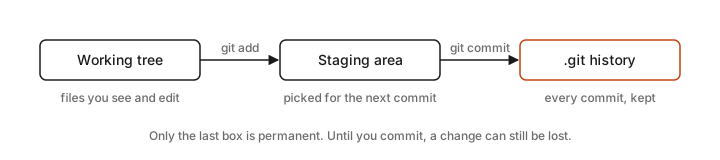
Pro Git describes three places your work can live. The working tree is the files you see and edit. The staging area (git also calls it the index) is a holding area for changes you've picked for the next save. The .git folder is the permanent history. Most confusion about git comes from forgetting which of those three you're looking at.
When you start Claude Code in a repo, it reads your git state when the conversation starts: the current branch, uncommitted changes, and recent commits (How Claude Code works). That's how it knows what you were in the middle of.
A commit is a save point
A commit is a snapshot of your project at a moment in time. Git stores whole snapshots, not lists of edits. Each commit records who made it, a message describing it, a pointer to the commit before it, and an ID. The ID is a 40-character hash like 24b9da6552252987aa493b52f8696cd6d3b00373 (Pro Git).
Making one by hand takes two steps.
git status                       # what changed?
git add notes.md                 # stage this file for the next commit
git commit -m "Add meeting notes"
The git add step trips people up. It means "add precisely this content to the next commit" (Pro Git). If you edit the file again after adding it, you add it again.
Pro Git's advice is to "make each commit a logically separate changeset," with a short first line in the imperative ("Fix login bug," not "fixed stuff") (Pro Git). Small commits are easy to review and easy to undo one at a time. A commit that bundles a day's work is all-or-nothing.
With Claude Code you rarely type any of this. You say "commit my changes with a descriptive message" and it stages, writes the message, and commits (Overview). By default it adds a Co-Authored-By: Claude ... line to the message, which you can change with the attribution setting (Settings). Most commits on this blog have one.
How often you have Claude commit depends on the work. Each rhythm has its uses.
| When Claude commits | Good for | Trade-off |
|---|---|---|
| After every change | Risky or exploratory work, where you want to step back one edit at a time | A long, noisy history |
| At the end of each task | Most day-to-day work. One commit per finished piece reads cleanly later | Mid-task mistakes are harder to undo on their own |
| Only when you ask | Learning git, or when you want to review everything before it's saved | Easy to forget, and uncommitted work has no safety net |
A branch is a parallel version
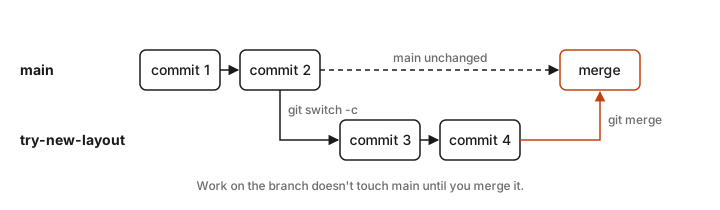
A branch is "a lightweight movable pointer" to a commit (Pro Git). That's all it is. When you commit on a branch, the pointer moves forward to the new commit. Other branches stay where they were.
This is what makes experiments safe. Your working version lives on main. You make a branch, try something, and if it works you merge it back. If it doesn't, you throw the branch away and main never knew.
git switch -c try-new-layout     # create a branch and move to it
# ...edit and commit...
git switch main                  # go back
git merge try-new-layout         # bring the work in
A note on names. GitHub has called the default branch main since October 2020 (GitHub changelog). Git itself still calls it master when you run git init, and the docs say "this will change to main when Git 3.0 is released" (git-init). Set it once (see setup below) so your local repos match GitHub.
Sometimes a merge hits a conflict, when the same lines changed differently on both branches. Git stops and writes both versions into the file between <<<<<<<, =======, and >>>>>>> markers. You (or Claude) pick what to keep, delete the markers, then git add and git commit (Pro Git). It looks scarier than it is.
A remote is the copy somewhere else
A remote is a copy of the repo hosted elsewhere, usually GitHub. When you clone, git names it origin automatically (Pro Git). Three commands move work between your machine and the remote.
git pushuploads your commits.git fetchdownloads new commits but doesn't change your files.git pulldownloads and merges in one step.
Your commits live only on your machine until you push. If your laptop dies before then, they're gone.
On GitHub, the standard way to merge a branch is a pull request (PR), a "proposal to merge code changes into a project" (GitHub Docs). GitHub flow is the simple loop most teams use.
- Create a branch.
- Make changes and commit them.
- Push and open a pull request.
- Review and address comments.
- Merge, then delete the branch.
Claude Code opens PRs with GitHub's gh command-line tool (Common workflows), so ask it to "create a PR for my changes" and it'll push the branch and open one. Even when you work alone, a PR gives you one page showing everything Claude changed before it lands on main.
A worktree is a second desk
Claude Code leans on git hardest with worktrees. Normally a repo has one folder, and that folder is on one branch at a time. If two Claude sessions work in the same folder, they edit the same files and step on each other.
A worktree fixes that. Git lets one repository "support multiple working trees, allowing you to check out more than one branch at a time" (git-worktree). Each worktree is a separate folder with its own branch, but they all share one history. Commit in one and the others can see it. The one rule is that a branch can only be checked out in one worktree at a time.
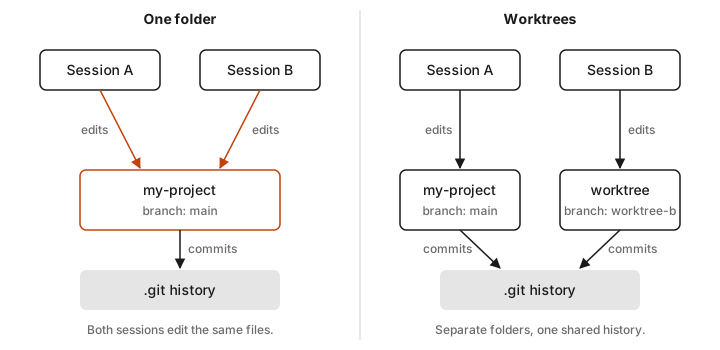
Claude Code wraps this up for you. In the terminal, claude --worktree feature-auth (or -w) creates a worktree at .claude/worktrees/feature-auth/ on a branch called worktree-feature-auth, and starts the session there (Worktrees). Leave off the name and Claude makes one up. In the desktop app it's the Worktree toggle on a new session (Desktop). Subagents can get their own worktree too, with isolation: worktree.
Two practical tips from the docs:
- Add
.claude/worktrees/to your.gitignoreso the worktree folders don't show up as changes in your main checkout. - Files git ignores, like your secrets file, don't get copied into a new worktree. List them in a
.worktreeincludefile (same syntax as.gitignore) and Claude Code copies them in.
This is the machinery behind running several sessions at once, which I wrote about in nested sessions. The parent session merges each child's branch when it's done.
I learned this one the hard way. Before I used worktrees, I ran two sessions in the same folder and they overwrote each other's edits.
Checkpoints aren't git
Claude Code has its own undo. Press Esc twice or type /rewind and you can roll back the code, the conversation, or both, to any earlier prompt (Checkpointing). It's great for "no, not like that."
It's not version control, and the docs say so plainly: "Checkpoints are designed for quick, session-level recovery. For permanent version history and collaboration, continue using version control, such as Git, for commits, branches, and long-term history." Checkpoints only track edits Claude makes with its file tools. The same page says they don't track "files modified by Bash commands," so if Claude runs a script that rewrites files, or deletes something with rm, rewind won't bring it back. They also don't cover your own edits, and they expire. A commit doesn't expire.
Setting it up from scratch
As of October 2026, the latest git is 2.56.0, released September 28 (git-scm.com, git/git tags).
1. Install git
On a Mac, the easiest route is Apple's command line tools, which include git. Or use Homebrew if you have it (git-scm.com).
xcode-select --install
# or
brew install git
On Windows, install Git for Windows, or run winget install --id Git.Git -e --source winget. On Linux, use your package manager (sudo apt-get install git or sudo dnf install git). Check it worked with git --version.
2. Tell git who you are
Every commit carries your name and email, "immutably baked into the commits" (Pro Git). Set them once. The third line makes new repos start on main.
git config --global user.name "Your Name"
git config --global user.email you@example.com
git config --global init.defaultBranch main
3. Make a GitHub account and sign in from the terminal
Sign up at github.com. The free plan includes unlimited public and private repos and unlimited collaborators (GitHub pricing, GitHub's plans).
GitHub stopped accepting passwords for git in August 2021 (GitHub blog), so you need a token or an SSH key. Skip both and install the GitHub CLI, which handles it for you and is also what Claude Code uses to open PRs.
brew install gh          # Mac; see cli.github.com for Windows and Linux
gh auth login
gh auth login opens your browser, signs you in, and offers to set up git's credentials so git push just works (gh manual). If you'd rather click than type, GitHub Desktop is a free app for Mac and Windows that does the same.
4. Create a repo
You can start on GitHub. Click + then New repository, give it a name, pick public or private, and tick the boxes for a README and a .gitignore template (GitHub Docs). Then clone it.
Or start from a folder you already have. This turns it into a repo, makes a first commit, creates a private repo on GitHub, and pushes to it.
cd my-project
git init
git add .
git commit -m "First commit"
gh repo create my-project --private --source=. --remote=origin --push
Or skip all of that and ask Claude Code to do it. Now that you know what each step is, you can read along as it does.
5. Keep secrets out
A .gitignore file lists files git should never track. Put your secrets file in it, along with things like node_modules/ and .DS_Store, before your first commit. A .gitignore doesn't affect files git already tracks. You'd have to untrack them with git rm --cached <file> (gitignore docs).
This matters because a committed secret stays in the history even after you delete the file. GitHub's advice is to revoke and replace the key first, because cleaning history is hard and copies can survive in clones and forks (GitHub Docs). GitHub's push protection blocks pushes containing known secrets to public repos by default, but not to private ones unless you turn it on (GitHub Docs). Private by default is the safer habit.
Undo, and what Claude asks first
The undo commands you'll actually use:
| Command | What it does | Safe? |
|---|---|---|
git restore <file> |
Throws away uncommitted edits to a file | Destroys those edits |
git restore --staged <file> |
Unstages a file, keeps your edits | Yes |
git revert <commit> |
Makes a new commit that undoes an old one | Yes, history is kept |
git stash / git stash pop |
Sets uncommitted work aside, then brings it back | Yes |
git reset --hard |
Moves the branch back and discards local changes | No |
The git docs warn about reset --hard directly: "Do not do this if you have already given these commits to somebody else" (git-reset). If you're unsure, revert is almost always the right answer, and you can ask Claude to do it.
On permissions, read-only git commands like git status and git log run without asking. Everything else, including git commit and git push, prompts you by default unless you've allowed it (Permissions). In auto mode, Claude blocks force pushes, git reset --hard, and similar destructive commands on its own. But auto mode allows "pushing to any branch of the repository you're working in, including the default branch," without a prompt (Permission modes). If you want a human check before anything reaches GitHub, add Bash(git push *) to your permissions.ask rules.
How I'd start
I run auto mode and let Claude commit and push. If you're new to all of this, the one habit that pays off is committing before you ask Claude for anything big. Then whatever happens, git status shows you what changed and git restore gets you back. Everything else in this post you can learn when you need it.
Sources
- Pro Git book (history, what git is, recording changes, branching, remotes, first-time setup, contributing)
- git-init, git-worktree, git-reset, git-restore, gitignore
- Install git: macOS, Windows, Linux
- git/git tags
- Git turns 20: a Q&A with Linus Torvalds, GitHub blog, April 2025
- About GitHub and Git, GitHub Docs
- GitHub pricing and GitHub's plans
- Git password authentication is shutting down, GitHub changelog, August 2021
- The default branch for newly created repositories is now main, GitHub changelog, October 2020
- GitHub flow and About pull requests, GitHub Docs
- Creating a new repository, GitHub Docs
- gh auth login and gh repo create, GitHub CLI manual
- About GitHub Desktop
- Removing sensitive data from a repository and About push protection, GitHub Docs
- Claude Code docs: Common workflows, Overview, How Claude Code works, Worktrees, Checkpointing, Desktop, Claude Code on the web, Settings, Permissions, Permission modes